Why Not Just Use macOS “Auto” (or NightOwl)?
I tried.
On a couple of my machines, macOS’ built-in Auto appearance switching just… wasn’t reliable. Sometimes it wouldn’t flip when it should, and sometimes it felt like it “worked until it didn’t”.
I also tried NightOwl. It’s a great app, but for what I wanted it felt:
- a bit inconsistent (for my setup), and
- a bit too configurable (lots of knobs for a problem I wanted to be boring).
So I built something intentionally simple:
- no global shortcuts / hotkeys
- no automations beyond “switch at the right time”
- no external APIs
Why I Built happymode
I wanted my Mac to switch between Light and Dark automatically — and I wanted it to feel “native”, not like a background daemon with a dozen knobs.
My personal wishlist was pretty small:
- No external services (no “weather” API calls, no tracking, no accounts).
- Predictable schedules (either solar-based or exact times I pick).
- Permission-aware UX (macOS can be strict about Location + Automation).
- Menu bar-first (fast, quiet, and out of the way).
That became happymode: a menu bar app that switches appearance using sunrise/sunset (with local math) or custom daily times.
The loop is intentionally simple: get a coordinate (or use manual), compute the next transition, and flip appearance when the clock crosses it.
Architecture at a Glance
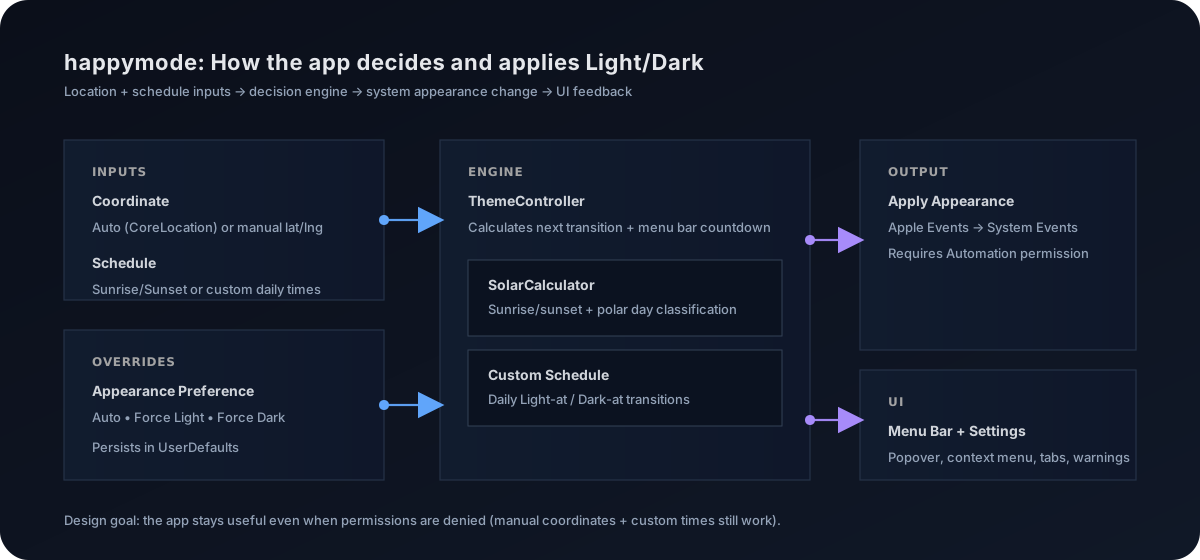
At a high level:
- Menu bar UI (left-click popover + right-click context menu)
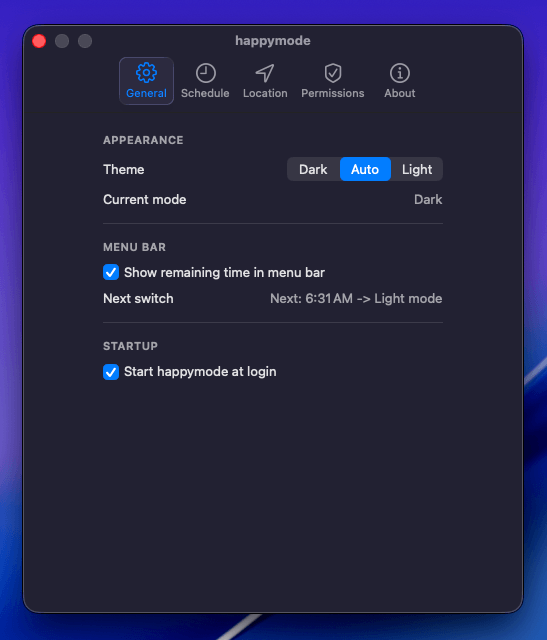
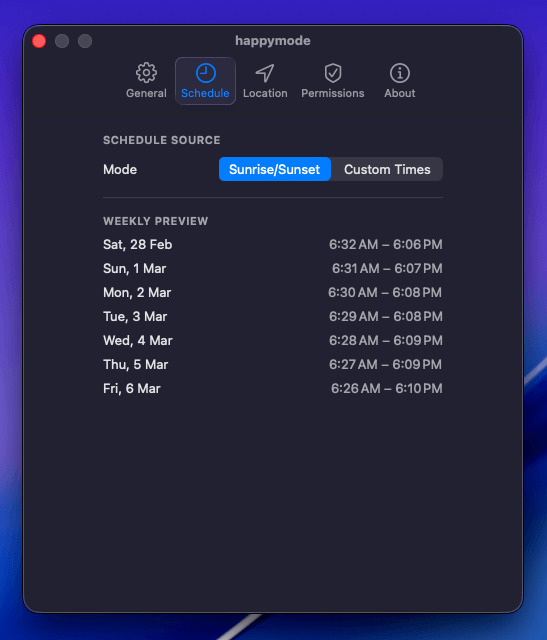
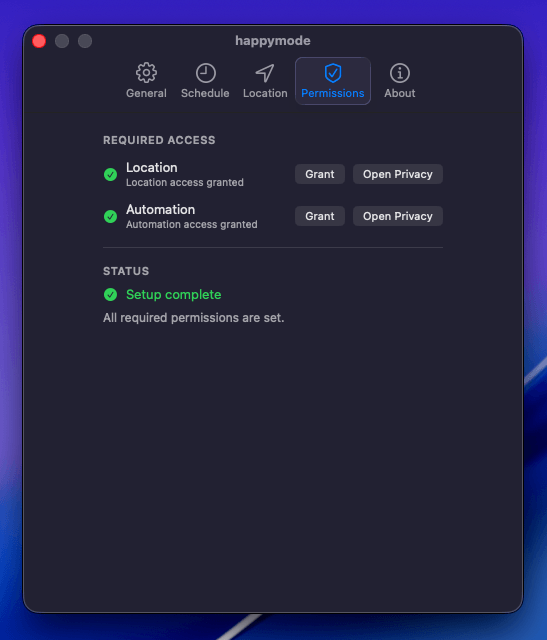
- Settings window with dedicated panes (General, Schedule, Location, Permissions, About)
- ThemeController that:
- resolves location (or uses manual coordinates)
- computes sunrise/sunset or custom time transitions
- updates a countdown / “next switch” label
- applies the appearance change
Scheduling: Sunrise/Sunset Without Any API Calls
Solar schedules sound “simple” until you hit edge cases:
- The user denies location.
- The user is traveling (time zone changes).
- You’re in regions with polar night (no sunrise) or midnight sun (no sunset).
happymode does the sunrise/sunset math locally. If sunrise or sunset is missing for a day, it classifies the day as always-dark or always-light and shows that in the UI instead of failing silently.
Here’s the shape of that logic (simplified):
enum SolarDayType {
  case normal(sunrise: Date, sunset: Date)
  case alwaysDark
  case alwaysLight
}
Small modeling tip
If you’re building anything time-based: model “no event exists” explicitly. It keeps your scheduling logic honest, especially in weird calendar/latitude situations.
Scheduling: Custom Daily Times (Light at X, Dark at Y)
Solar mode is great for “set and forget”, but sometimes you want “Dark at 7pm, always”.
Custom scheduling is built around two daily transition times:
- a Light time
- a Dark time
The scheduler finds:
- the most recent past event (that tells the current state), and
- the next upcoming event (that tells the next transition).
The important part is handling cases like:
- Light time is after Dark time (crosses midnight)
- both events happen on the same day
- user accidentally sets identical times (invalid schedule)
Actually Switching macOS Appearance (and Permissions)
On macOS, changing system appearance programmatically goes through System Events. That means happymode needs Automation permission.
When permission is missing, happymode doesn’t pretend everything is fine — it shows a clear warning and points you to the right System Settings screen.
The mechanism is intentionally boring: an AppleScript command that toggles dark mode:
tell application "System Events"
  tell appearance preferences
    set dark mode to true
  end tell
end tell
Automation permission is required to flip appearance. Location permission is only required for automatic sunrise/sunset by detected coordinates (you can still use manual coordinates or custom times without it).
UI: Menu Bar First, Settings When You Need Them
Menu Bar Popover
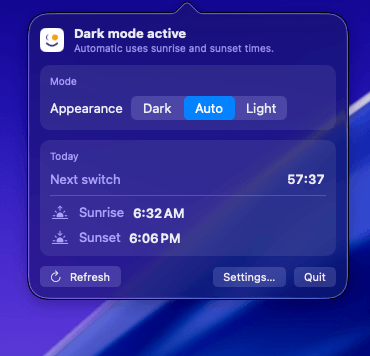
The popover is the main control surface:
- switch between
Auto,Light, andDark - in Auto mode, pick
Sunrise/SunsetorCustom Times - see what happens next (countdown + today’s times)
Settings: General, Schedule, Permissions
Updates: Simple, Transparent, and Rate-Limited
Auto-update frameworks are great, but for this app I kept update checks simple:
- check GitHub Releases for the latest tag
- rate-limit automatic checks to once per day
- allow a manual “Check for Updates…” action
That’s enough for a small utility — and it keeps the entire update story visible and debuggable.
Install and Source
- Homebrew:
brew tap happytoolin/happytapthenbrew install --cask happymode - Source:
happytoolin/happymodeon GitHub
Not notarized (yet)
happymode is currently not notarized. On first launch, macOS Gatekeeper may block it. If that happens, use System Settings → Privacy & Security → Open Anyway, or remove the quarantine attribute:
xattr -dr com.apple.quarantine "/Applications/happymode.app"If you build macOS utilities for yourself, I highly recommend the menu bar route: you get fast interactions, minimal surface area, and a UX that feels at-home on macOS.